Join a space you were invited to
Part ofSpaces and invitationsTogether
If someone in your family invited you to a space, you join in one of three ways, depending on what you got. Once you are in, you can see their photos, add your own and write about the day. It costs nothing, and it works the same on every plan.
| What you got | What to do |
|---|---|
| A KakaoTalk invite card or a link | Join with a link |
| A 6-digit number | Join with a code |
| An invitation email | Join from an email |
When it helps
Section titled “When it helps”- Your son or daughter made a space for photos of the grandchildren and invited you.
- A friend made a space for trip photos and invited you.
Before you start
Section titled “Before you start”- You have a Google, Kakao or Apple account. If you are new to Firstage, signing in with it also makes your Firstage account.
- Use the link or code within 7 days. After that, you need a new one.
Join with a link
Section titled “Join with a link”Use this when you got an invite card in KakaoTalk or a link in a text message.
- Tap ‘Join’ on the KakaoTalk invite card. If you only got a link, tap the link.
- The ‘Join Workspace’ screen opens. You see the space’s name under ‘You’ve been invited to’.
- Tap the button you see:
- ‘Accept Invitation’: you are already signed in.
- ‘Sign in to join’: you go to the sign-in screen.
- ‘Sign in with Kakao to join’: you opened the link inside KakaoTalk.
- Finish signing in. If this is your first time, you go through the agreement screen.
After you sign in, you join the space on your own. You don’t need to tap again.
Signing in with Google or Apple from KakaoTalk
Google and Apple sign-in don’t work inside KakaoTalk. Tap ‘Open in another browser’ to open the same screen in your phone’s web browser. Then tap the button again there.
If you open the link in an iPhone web browser, you also see ‘Open in the installed app’ and ‘Get the app on the App Store’. You can join right on this screen even without the app.
Join with a code
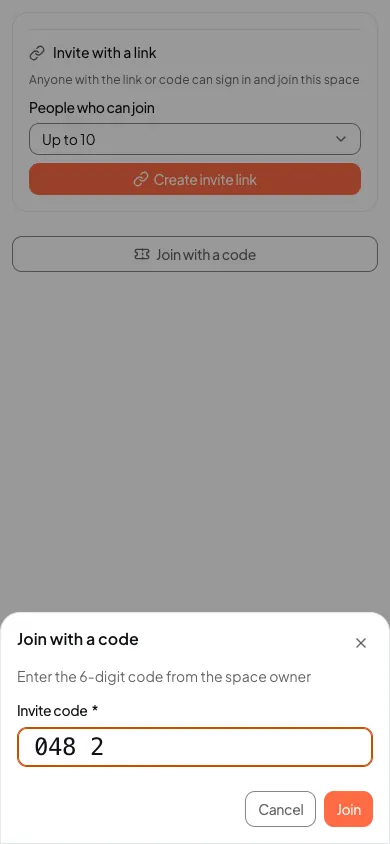
Section titled “Join with a code”Use this when someone told you a 6-digit number on the phone or by text. Sign in to Firstage first.
- Open the Firstage app or app.firstage.ai and sign in.
- In the bottom bar or the menu, tap ‘Workspaces’. The ‘Shared spaces’ screen opens.
- Below the list of spaces, tap ‘Join with a code’.
- Type the 6 numbers in the ‘Invite code’ box.
- Tap ‘Join’.
Join from an email
Section titled “Join from an email”The invitation email goes to the address the owner typed. You need to sign in with that same email account.
- Open the invitation email and tap the link in it.
- On the ‘Join Workspace’ screen, tap ‘Accept Invitation’ or ‘Sign in to join’.
- When you sign in, choose the email account the invitation went to.
After you join
Section titled “After you join”- Open the space and you see your family’s photos and stories in the ‘Feed’.
- Tap ‘Add photos’ to add your own photos to this space.
- Tap ‘Write a story’ to write about the day together.
There is more in Make a space to share with family.
If it doesn’t work
Section titled “If it doesn’t work”| What the screen says | What to do |
|---|---|
| This code is wrong or no longer works | Check the 6 numbers again. If it still fails, ask the owner for a new code |
| Too many tries | Wait until the time on the screen, then try again |
| This invitation has expired | 7 days have passed. Ask the owner for a new invitation |
| This invitation can’t be used anymore | Ask the owner for a new invitation |
| This invitation was sent to a different email address. | Tap ‘Sign out and use another account’, then sign in with the account the email went to |
| This invitation has already been accepted | You are already in. Tap ‘Open workspace’ |
- You signed in, but a different screen opened. Tap the link you got once more. This time you see ‘Accept Invitation’.
- You can’t find ‘Join with a code’. Check that you are signed in. The button is at the very bottom of the list of spaces, so scroll all the way down.
- After joining, you see that you are no longer in this space. The owner removed you. Ask for a new invitation to come back.
Read next
Section titled “Read next”The chat could not open. Please email us at contact@firstage.ai