Ordering a print and paying
Part ofOrders and deliveryMake
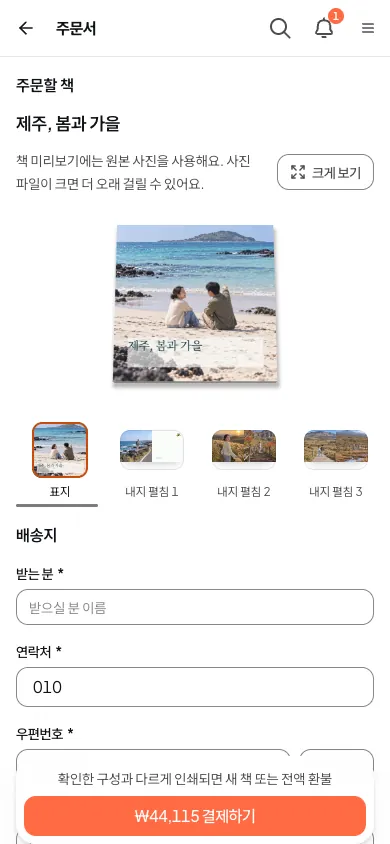
When your book is ready, one ‘Checkout’ screen shows the book, where it goes and what it costs, and you pay by card. Once the payment is confirmed, the printer makes your book and sends it to the address you gave.
When it helps
Section titled “When it helps”- You want the photobook you made delivered to your home.
- You want to send a gift straight to your parents’ address.
Before you start
Section titled “Before you start”- Your book is finished. See Make a photobook.
- Delivery is to addresses in Korea only.
- You pay by card.
- One order is one book. To get another copy, order again.
- You can order a calendar when its editor shows an order button. Postcards and photo cards can’t be ordered yet. See Make calendars and postcards.
Place an order
Section titled “Place an order”- In the photobook editor, tap ‘Order a print’. ‘Checkout’ opens.
- Check the book in the preview at the top. Tap ‘Expand preview’ to see it bigger.
- Read ‘Print checks’. If something needs fixing, go back to the editor and fix it.
- Under ‘Delivery address’, enter who receives it, a phone number and the address. Use ‘Find address’ to look up the address.
- Under ‘Total’, check the ‘Book price’, ‘Shipping’, any discount, and the total.
- Read ‘Production and delivery’.
- Tick both agreements below it.
- Tap the pay button, which shows the amount.
- Pay by card in the payment window that opens.
The ‘Order details’ screen shows ‘Payment complete’.
You type your card number only in the payment company’s window. Firstage never receives or keeps your card number.
The two agreements
Section titled “The two agreements”- You checked the book, the total and the address, and you agree to pay under the exchange and refund rules.
- Each book is made to order. You agree that you can’t cancel because you changed your mind once the printer has checked the file and started making it.
How long it takes
Section titled “How long it takes”‘Production and delivery’ on the checkout screen says:
- Production begins after the printer confirms the file is ready.
- Your order arrives 7 to 10 business days after payment is confirmed. Weekends and public holidays don’t count.
- If printing or binding is defective, the book is made again or you get a refund.
To see where your order is, go to Track your order.
Save a delivery address
Section titled “Save a delivery address”- Tick ‘Save this address for my next order’ on the checkout screen. Next time you can pick it from ‘Saved addresses’.
- Add, change or remove saved addresses in ‘Account settings’ under ‘Delivery addresses’. You can save up to 10.
- The address you set with ‘Make default’ fills in first.
- To send somewhere else, tap ‘Enter a new address’ on the checkout screen.
If it doesn’t work
Section titled “If it doesn’t work”- You see ‘Payment was not completed.’ You closed the payment window or the payment didn’t go through. Your order is saved, so pay again for the same order.
- You want to finish paying later. In the menu, under ‘Make’, open ‘Print orders’ and tap ‘Continue payment’ on that order.
- You see ‘Checking payment result’. Don’t pay again. Tap ‘Check payment status’ on the same screen to see the result.
- You can’t go on to payment. Check that you ticked both agreements.
Ordering with a reward code
If you have a reward code, ‘Total’ shows ‘Covered by your reward’. You don’t pay anything. Tap ‘Place order’. You are done when you see ‘Your order is in’.
Read next
Section titled “Read next”Still have a question?You can ask the Firstage team in a chat.
The chat could not open. Please email us at contact@firstage.ai