Watch and make recaps
Part ofRecapsLook back
A recap is a short story of photos and videos from one stretch of time, shown one after another. You can look back on a family’s month or year in a few minutes, without flipping through every photo.
You watch a recap right in the app. You only make a video file when you need one.
When it helps
Section titled “When it helps”- You want to watch your child’s past year together as a family.
- You want to see your trip photos again as one short story.
- You want to send a video made from your photos to relatives.
How recaps arrive
Section titled “How recaps arrive”| Way | What happens |
|---|---|
| Received | When a stretch of time ends and enough photos from it are ready, a recap arrives on its own. Depending on your plan, one comes each season, or each month and each year. |
| Created | You make one from the photos and videos you choose. |
The top of the Recaps screen also says which recaps your plan gets, for example “Season recaps are included in your plan and arrive when enough photos are ready”.
Watch a recap
Section titled “Watch a recap”- Open “Library” in the menu and tap “Recaps”.
- Tap the recap you want. New ones are marked “New”.
- Tap “Play”.
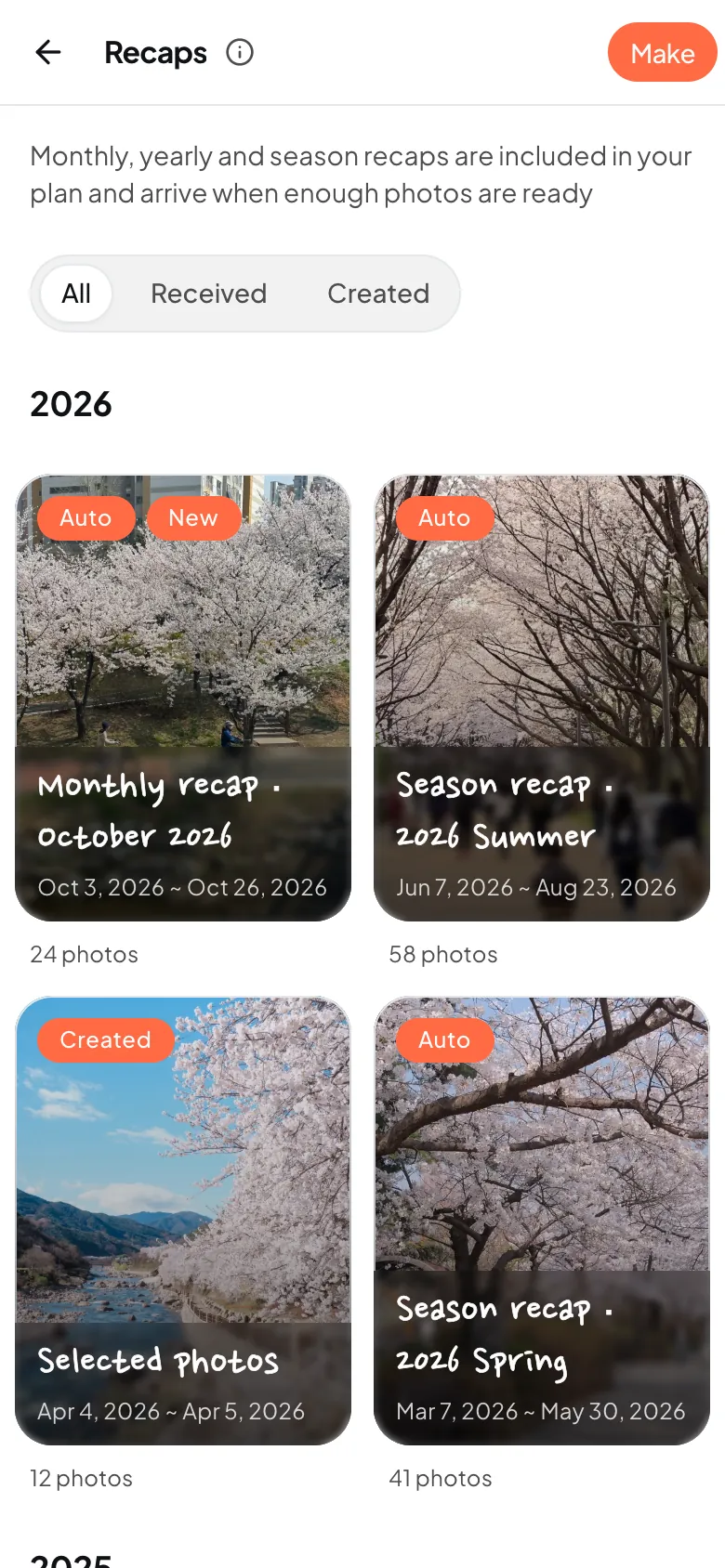
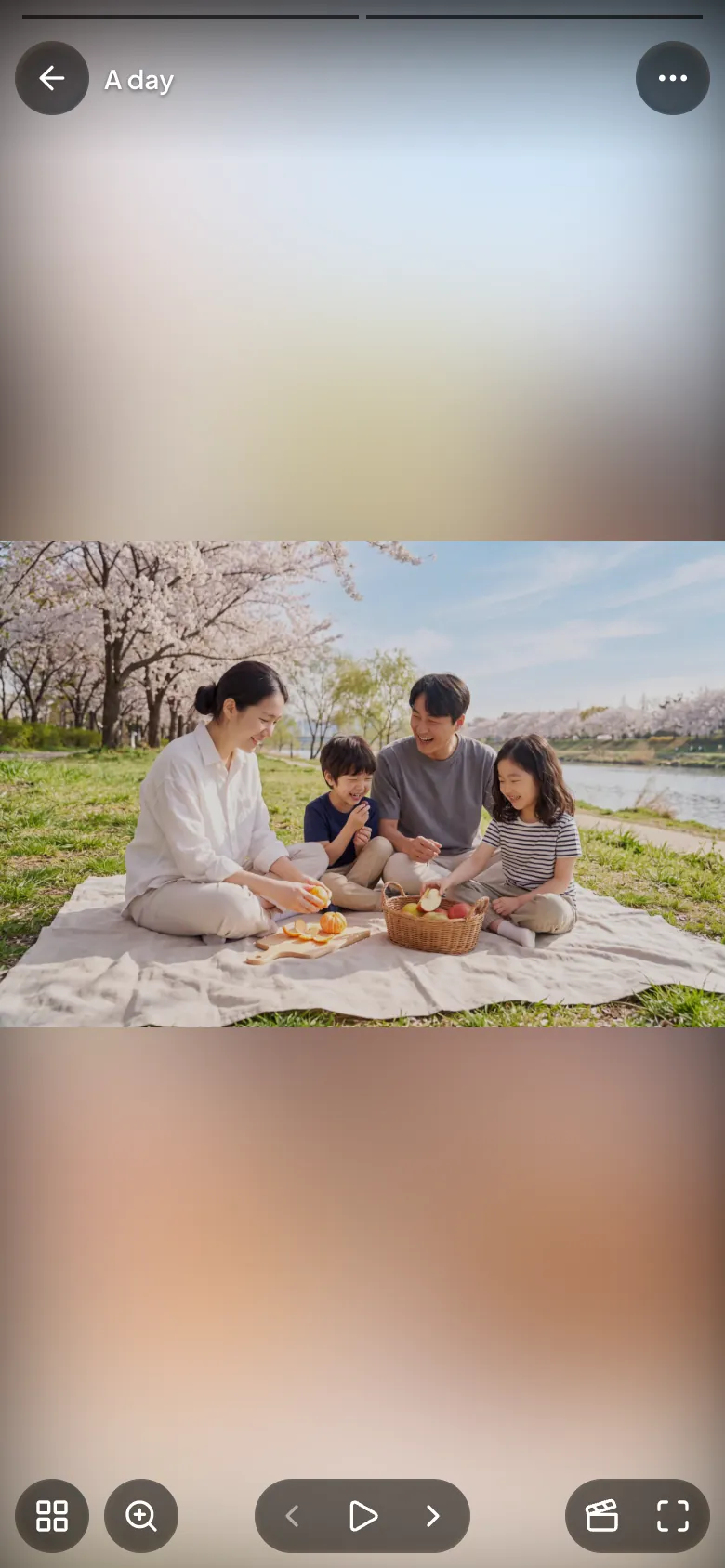
- A recap does not start on its own when you open it. It starts when you tap “Play”.
- Recaps play without sound for now.
- Tap “All”, “Received” or “Created” to see one kind at a time.
Make a recap
Section titled “Make a recap”- Tap “Make a recap” at the top of the Recaps screen.
- In “Pick photos and videos”, choose what to put in.
- Tap the button that shows your count, such as “Use 10 photos or videos”.
- Under “Style”, choose “Vlog” or “Visual diary”.
- Under “Time per photo or video”, choose how many seconds each one shows.
- Tap “Make it”.
| Style | How it feels |
|---|---|
| Vlog | Quick cuts, full screen |
| Visual diary | Soft fades, calm lettering |
- A recap you make can be up to 5 minutes long. The shorter the time per photo, the more you can fit. The screen shows how many fit.
- You can also start from a journey, the Photos screen or On this day: choose photos, then tap “Make a recap”.
Change a recap
Section titled “Change a recap”- Open the recap and tap “Recap actions”.
- Tap “Edit”. “Edit recap” shows the photos in play order.
- Tap X on a photo to take it out. Tap a photo to swap it for another one.
- Save at the bottom.
Tapping X does not delete the photo. It only leaves this recap. If you make a mistake, undo it from the message that appears. If you try to leave without saving, you are asked first.
Save it as a video
Section titled “Save it as a video”- Open the recap and tap “Export video”.
- When you see “Making your Recap video”, wait. It keeps going if you leave the page.
- When you see “Your Recap video is ready”, tap “Download video”.
In the iPhone app, the share sheet opens. Choose save there to put it in your Photos app. You can download a video for 7 days after it is made.
Delete a recap
Section titled “Delete a recap”- Open the recap and tap “Recap actions”.
- Tap “Delete”.
- In “Delete this recap? The photos stay where they are”, confirm.
Deleting a recap never deletes your photos. If you delete a recap you received, the recap for that stretch of time does not come again. You can delete recaps on any plan.
By plan
Section titled “By plan”How often recaps arrive, making your own, downloading videos and changing the order depend on your plan.
| Free | Plus | Pro | |
|---|---|---|---|
| Seasonal recaps | |||
| Seasonal recaps | Watch in the app | Included | Included |
| Monthly and yearly recaps, and downloads | |||
| Monthly and yearly recaps, and downloads | Not included | Included | Included |
| Make your own recap, pick its photos and cover | |||
| Make your own recap, pick its photos and cover | Not included | Included | Included |
| Reorder the scenes you picked | |||
| Reorder the scenes you picked | Not included | Not included | Included |
| Text styles and your own watermark | |||
| Text styles and your own watermark | Not included | Not included | Included |
Note
If you change your plan, the recaps you already received stay.
If it doesn’t work
Section titled “If it doesn’t work”- You see “You can make recaps with Plus”: Making your own recaps works on Plus and Pro. You can still watch the recaps you received on your current plan.
- No recaps arrive: A recap comes after a stretch of time ends and enough photos from it are ready. Add more photos and they go into the next recap.
- A message says how many photos or videos a recap needs at least: Choose more until you reach that number.
- You see “We couldn’t make your Recap video”: Your photo recap is still there. Tap “Make the video again”.
- You see “The download could not open.”: Your browser may have blocked a pop-up. If it asks, allow it and tap again.
Read next
Section titled “Read next”The chat could not open. Please email us at contact@firstage.ai