Look back with On this day
Part ofOn this dayLook back
“On this day” shows photos you took on today’s date in earlier years. You do not need to search or pick anything. A day you had forgotten comes back on its own.
When it helps
Section titled “When it helps”- You wonder what you did today when your child was three.
- A trip you took on this day years ago comes to mind.
- There are no photos for today, but you want to look at other dates from the past year.
Open On this day
Section titled “Open On this day”- Open the menu. On a phone, tap the menu button at the top right.
- Under “Library”, tap “On this day”.
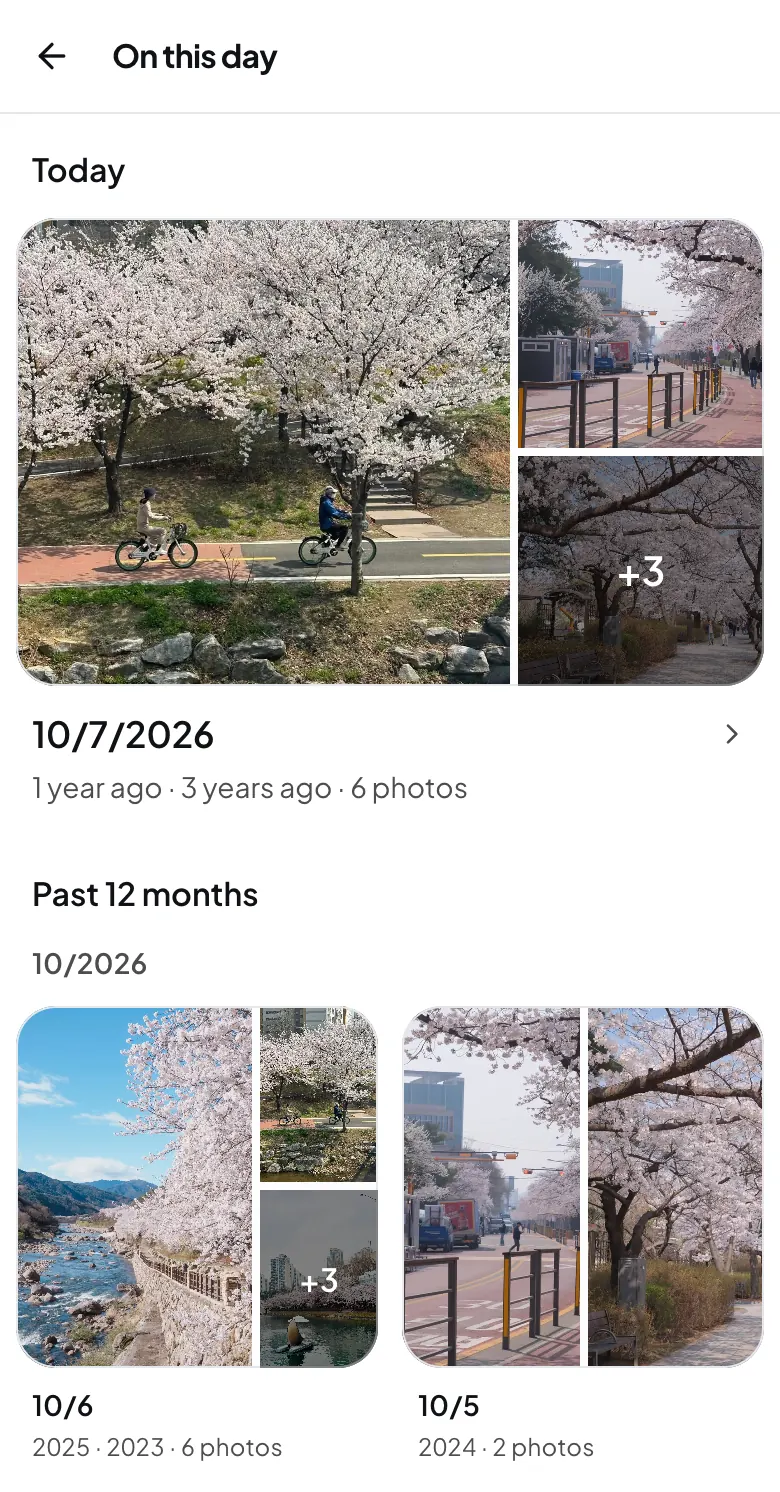
What you see
Section titled “What you see”| Section | What it shows |
|---|---|
| Today | Photos from today’s date in earlier years, grouped by year, such as “1 year ago” and “2 years ago”. |
| Past 12 months | Dates from the past year that have photos from earlier years, newest first. |
Each card in “Past 12 months” shows the date, the “Source years” and how many photos there are. To see more, tap “Load more” at the bottom.
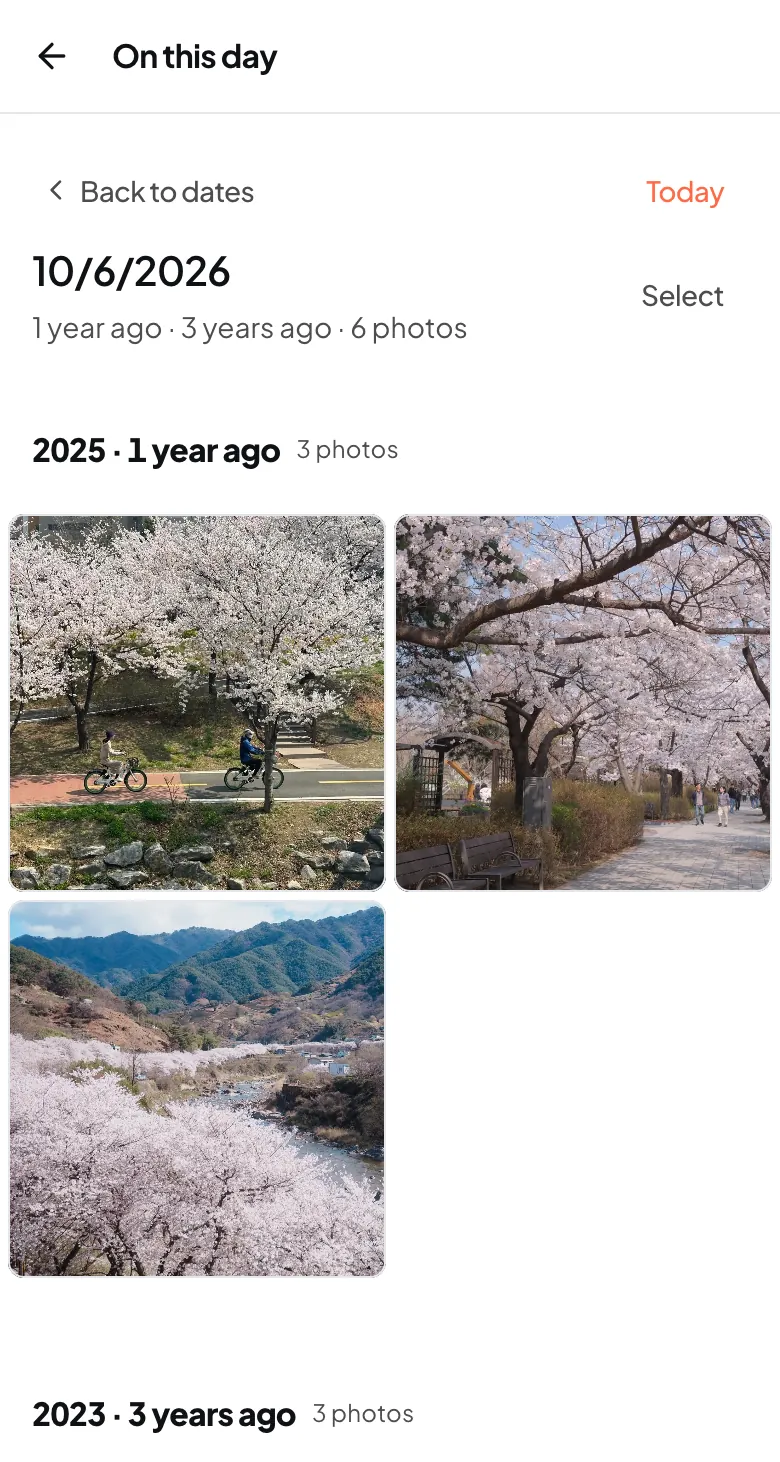
Look at one date
Section titled “Look at one date”- In “Past 12 months”, tap a date card.
- See that day’s photos, grouped by year such as “1 year ago” and “2 years ago”.
- Tap a photo to open it up close.
- To go back to the list, tap “Back to dates”.
Make something from the photos you choose
Section titled “Make something from the photos you choose”- On a screen with photos, tap “Select”.
- Choose the photos you want.
- Choose what to do: “Add to album”, “Make a recap”, “Make postcards” or “Make a photobook”.
The full steps are in Sort photos into albums and folders, Recaps and Make a photobook.
By plan
Section titled “By plan”On this day shows every earlier year on every plan. Making a recap yourself from the photos you choose depends on your plan. See the plan differences in Recaps.
| Free | Plus | Pro | |
|---|---|---|---|
| Years you can look back | |||
| Years you can look back | Every year | Every year | Every year |
How the date is decided
Section titled “How the date is decided”- “Today” follows your account’s time zone. It changes to the next day at midnight in that time zone.
- Photos with no date taken do not show up. Once you set a date, they start to appear. See Fix the date, place or caption.
- Photos taken on February 29 show up only in years that have a February 29.
If it doesn’t work
Section titled “If it doesn’t work”- You see “There are no past photos from today’s date yet.”: You have no photos from today’s date in earlier years. Look at other dates under “Past 12 months”.
- You see “There are no dates to revisit from the past year yet.”: You have no photos older than one year yet. They appear once you add older photos.
- An old photo you added does not show up: It may have no date taken, or the wrong one. Open the photo and check its date.
- You see “On This Day could not load.”: Wait a moment and tap “Try again”.
Good to know
Scanned old photos often have no date taken. Those photos do not show up in On this day. Set the date they were taken, and they appear on the right day.
Read next
Section titled “Read next”The chat could not open. Please email us at contact@firstage.ai