Make a photobook with your AI app
Part ofPhotobooks, calendars and postcardsMake
Tell the AI app you already use, “Make a photobook from my trip to the sea last summer”, and it drafts a book from your photos. This helps when choosing photos one by one feels like too much. The draft is saved in Firstage where only you can see it. You check it and order it yourself in Firstage.
When it helps
Section titled “When it helps”- You have so many photos that you don’t know where to start.
- You want to describe the book in words, like “mostly photos where the kids’ faces show” or “something warm and calm”.
- You want to change a few pages of a book by saying what you want.
Before you start
Section titled “Before you start”- Your AI app is connected to Firstage. See Connect and disconnect AI apps. You can also start from ‘Make it with my AI app’ on the ‘Make’ screen.
- On the agreement screen you see when you connect, making photobook drafts and suggesting changes are under ‘Always included’. There is nothing extra to switch on.
- If you turn on ‘Photo previews’ under ‘Optional permissions’, the AI app looks at small previews of photos you added to choose them. If you leave it off, the app plans the book from when each photo was taken, its shape, roughly where it was taken and your captions.
- Making and changing books through an AI app uses no Firstage credits.
Ask your AI app
Section titled “Ask your AI app”- Tell the AI app which photos to use. A journey name or dates work.
- Say what theme or feeling you want. If you ask which themes there are, the app tells you.
- If the app asks about the photos or the theme, answer it.
- The app saves the draft and gives you a link to the editor.
You could ask like this:
Make a photobook draft from the photos I took from April 1 to April 7. I’d like it to feel warm and calm.
Only you can see the draft. Open the link from the AI app and the book’s editor opens. Check the book with ‘Preview’. You can also change it yourself. See Make a photobook.
Change it in words
Section titled “Change it in words”Firstage has the AI app show you each change first, and only your approved changes go into the book.
- Tell the AI app what you want to change. If the book came from another chat, paste the editor’s address.
- The AI app shows the change. The same suggestion also appears as a ‘Connected AI’ card under ‘Edit with AI’ in the editor.
- On the card, check each change with ‘View all changes’.
- If you like it, look at the changed pages with ‘Preview in editor’ and tap ‘Apply’. You can also tell the AI app to apply it.
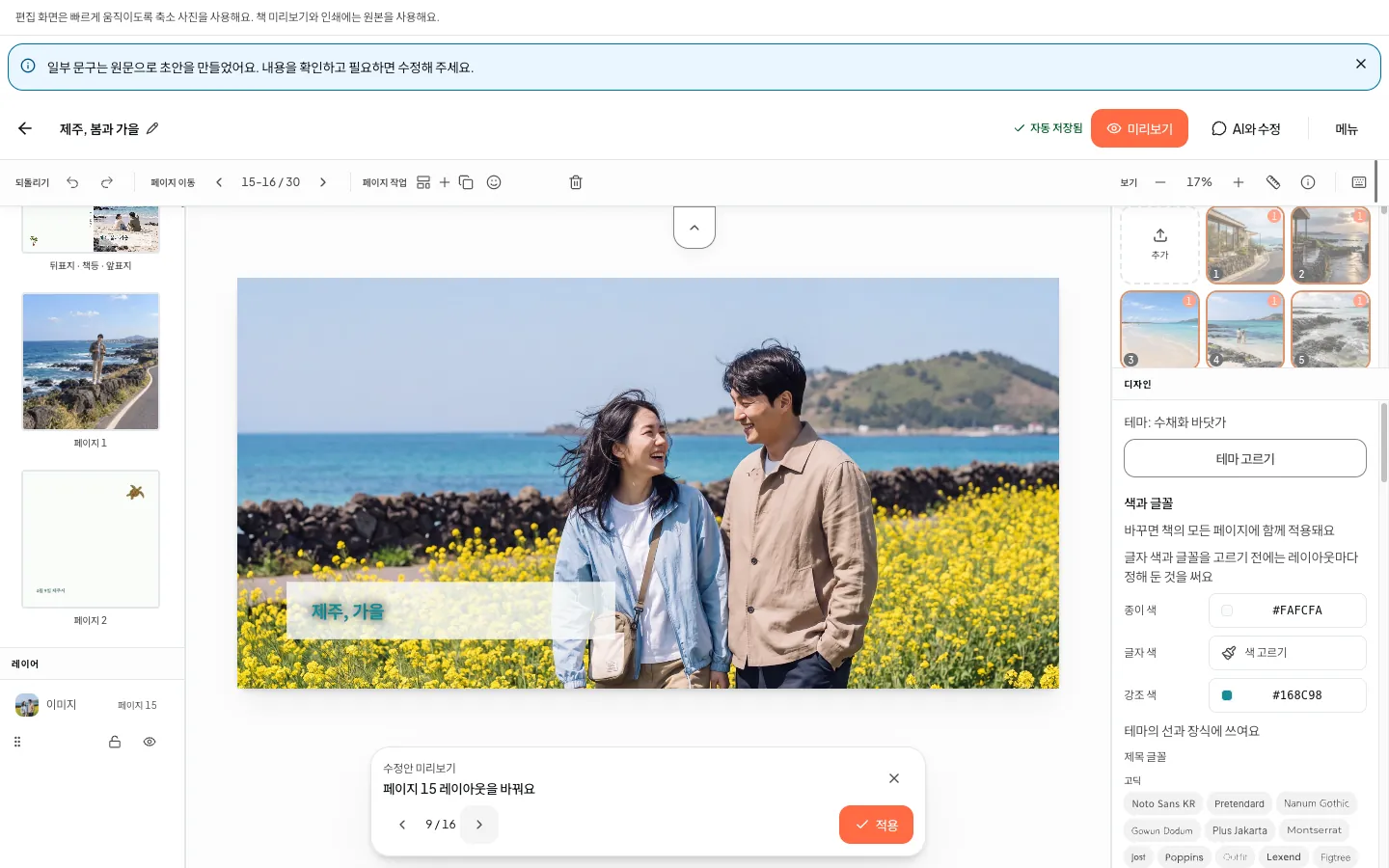
To say no, tap ‘Dismiss’ on the card. The book doesn’t change until you apply.
What an AI app can’t do
Section titled “What an AI app can’t do”- It can’t order, pay, publish or delete anything. You order the print yourself with ‘Order a print’ in the editor.
- It can’t see the pictures in photos other members added.
- It can’t see your list of books. Give it the editor’s address of the book to change.
An AI app can also draft calendars, photo postcards and mini photo cards. They appear in ‘My calendars’ and ‘My postcards and photo cards’. See Make calendars and postcards.
By plan
Section titled “By plan”Every plan can connect and use an AI app. Only the number of requests per day differs.
| Free | Plus | Pro | |
|---|---|---|---|
| Requests a connected AI app can send in a day | |||
| Requests a connected AI app can send in a day | 200 requests | 1,000 requests | 1,500 requests |
- The count refills every day at midnight UTC.
- If you connected more than one AI app, they share the same count.
- An AI app may make several requests while it answers you once.
If it doesn’t work
Section titled “If it doesn’t work”- The AI app says it can’t reach Firstage. In ‘Account settings’, under ‘Security and privacy’, open ‘Connected AI apps’ and check that the app is listed. If not, connect it again from the AI app.
- You used all of today’s requests. ‘Connected AI requests today’ in ‘Connected AI apps’ shows when the count refills. Disconnecting and connecting again doesn’t add more.
- You’re not sure the draft was saved. Check ‘My photobooks’ before you ask again. Asking again may make a second copy of the same draft.
Telling the app which book to change
The AI app can’t see your list of books. Copy the address from the address bar of the book’s editor and paste it into the AI app.
Read next
Section titled “Read next”The chat could not open. Please email us at contact@firstage.ai