Make a photobook
Part ofPhotobooks, calendars and postcardsMake
You may have thousands of photos on your phone, but a family rarely looks at them together. A photobook takes one story from them and makes it a book you can hold. Leave it in the living room, and grandparents and kids can turn the pages any time.
A Firstage photobook is a square hardcover book. When you open it, the two pages lie flat as one picture. Making and ordering a photobook work on every plan.
When it helps
Section titled “When it helps”- You want one family trip in one book, from the first day to the last.
- You want to keep a few photos from each month of your baby’s first year.
- You want to give your parents a year of photos of their grandchildren.
Small tips for a good book
Section titled “Small tips for a good book”- Tell one story. Something you can say in one line works best, like ‘Our trip to the sea’ or ‘Mia’s first birthday’.
- Give it a beginning and an end. Add the day you left, the best moment and the way home.
- Mix people and places. A view of the place between faces helps you remember the day.
- Keep one photo of each moment. When several photos look the same, choose the best one.
- Add a title and a few words. A date and a line or two tell you about the day years later.
Before you start
Section titled “Before you start”- You can only use photos you added yourself. One book holds up to 120 photos.
- Making a draft with AI uses credits. The most it can use shows above the button, as ‘up to’ a number of credits. Starting with a blank book and making it yourself uses no credits.
Make a photobook
Section titled “Make a photobook”- In the menu, under ‘Make’, tap ‘Photobooks’.
- Tap ‘Make a photobook’.
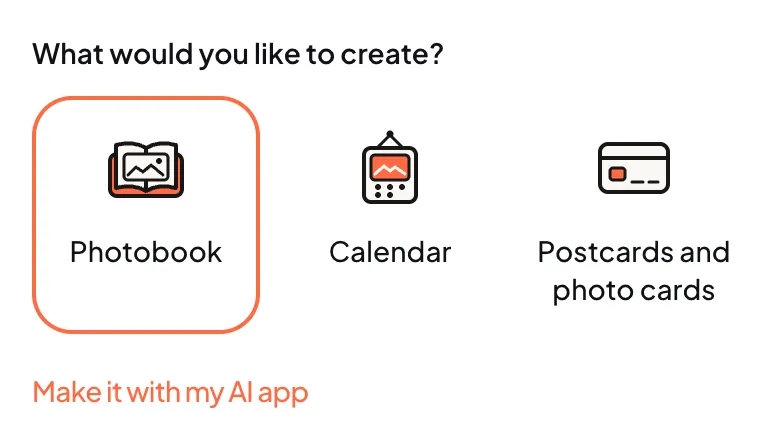
- Under ‘What would you like to create?’, choose ‘Photobook’.
- In ‘My photos’, choose the photos for the book. For photos that are only on your phone, use ‘Upload new’.
- Tap ‘Choose a theme’.
- Under ‘Choose a theme for your book’, look through the sample books and pick a theme. If you don’t pick one, the book has no theme.
- Tap ‘Next’.
- Under ‘Ready to make it?’, check your choices and tap the ‘Create with AI’ button, which shows how many photos you chose.
You can go to another screen while the book is being made. Tap ‘My photobooks’ and you see ‘Making your photobook’ in the list.
- To make the book yourself without AI, tap ‘Start with a blank book’.
- You can also start from a journey. Open the journey, open ‘Journey details’ and tap ‘Make a photobook’.
- You can ask an AI app you connected to make it for you. See Make a photobook with your AI app.
Edit your book
Section titled “Edit your book”Open the book to see the editor. Your changes save on their own, and you see ‘Saved’ at the top.
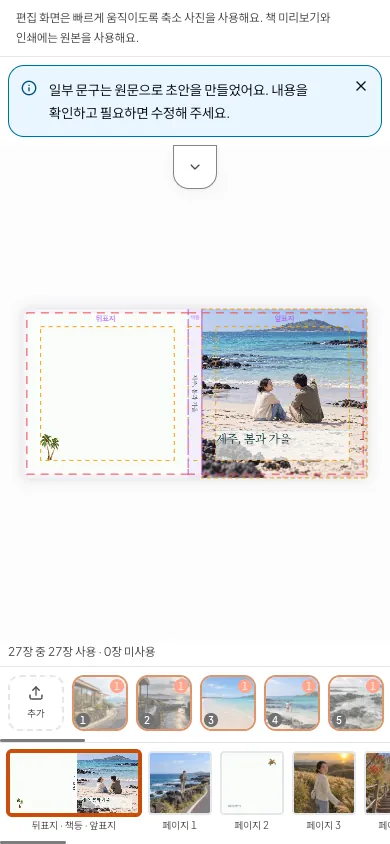
- See the book: tap ‘Preview’ to turn the pages like a real book.
- Change the theme: in ‘Choose theme’, pick a theme and tap ‘Apply theme’.
- Tidy everything at once: in ‘Tidy up the book’, tap ‘Tidy up’.
- Change it in words: open ‘Edit with AI’ and write what you want to change. When a suggestion comes, look at it with ‘Preview in editor’. The book only changes when you tap ‘Apply’.
The editor uses smaller copies of your photos so it stays fast. The preview and the printed book use your original photos.
Check and order
Section titled “Check and order”- In the editor, tap ‘Order a print’.
- Look at the print check.
- When nothing needs fixing, you see ‘Print check passed’.
- Check the ‘Book price’, ‘Shipping’ and ‘Total’.
- On the next screen, enter where to send it and pay.
- If something must be fixed, such as an empty photo spot, you can’t order yet. Fix it and come back.
- To print a low-quality photo as it is, tap ‘Accept this photo’s print quality’.
- Books print with 30 or 40 pages. If you have fewer pages, blank pages are added at the end. A book with more than 40 pages can’t be ordered, and the screen tells you how many pages to remove.
- Each order is for one book. To get more copies, order again.
- If you change the book after ordering, the changes only go into your next order.
How long it takes to arrive, and delivery, are in Ordering a print and paying.
By plan
Section titled “By plan”Making and ordering a photobook work on every plan. Shipping and discounts depend on the plan.
| Free | Plus | Pro | |
|---|---|---|---|
| Make and order a photobook | |||
| Make and order a photobook | Included | Included | Included |
| Photobook shipping | |||
| Photobook shipping | You pay shipping | Free | Free |
| Photobook discount (yearly billing only, up to 3 books a year) | |||
| Photobook discount (yearly billing only, up to 3 books a year) | Not included | 10% | 15% |
This is how you get the credits that AI drafts use:
| Free | Plus | Pro | |
|---|---|---|---|
| Monthly AI credits | |||
| Monthly AI credits | Not included | 200 credits | 400 credits |
If you run out of credits, only the AI features stop. You can still edit the book yourself and order it.
Photobook album
Section titled “Photobook album”When you make a photobook, an album with the book’s photos appears in ‘Albums’. Its name starts with ‘Photobook-’, and only you can see it. The photos also stay in ‘Photos’.
If it doesn’t work
Section titled “If it doesn’t work”- You can’t tap the ‘Create with AI’ button. Choose photos first. If you don’t have enough credits, use ‘Start with a blank book’.
- Some photos didn’t go in. One book holds up to 120 photos. Remove some and choose again.
- A theme says ‘Not orderable yet’. You can make a book with it, but you can’t order it. To order, choose another theme.
- ‘Order a print’ shows things to fix. Go to the page it names, fix it, then tap again.
Read next
Section titled “Read next”The chat could not open. Please email us at contact@firstage.ai