Look at your photos
Part ofPhotosKeep
Your photos line up on the Photos screen by the day they were taken. You do not have to sort them. You can still find the photos from that day, in that place.
When it helps
Section titled “When it helps”- You want to find last summer’s holiday photos by date.
- You want to see only the photos you took at your grandparents’ house.
- You want to open one photo from a birthday party and check when it was taken.
Open the Photos screen
Section titled “Open the Photos screen”- On a phone, tap “Photos” at the bottom of the screen. On a computer, open “Library” in the menu and click “Photos”.
- On a phone, the map is at the top and “My photo timeline” is below it. Tap “Show photos” to give your photos more room.
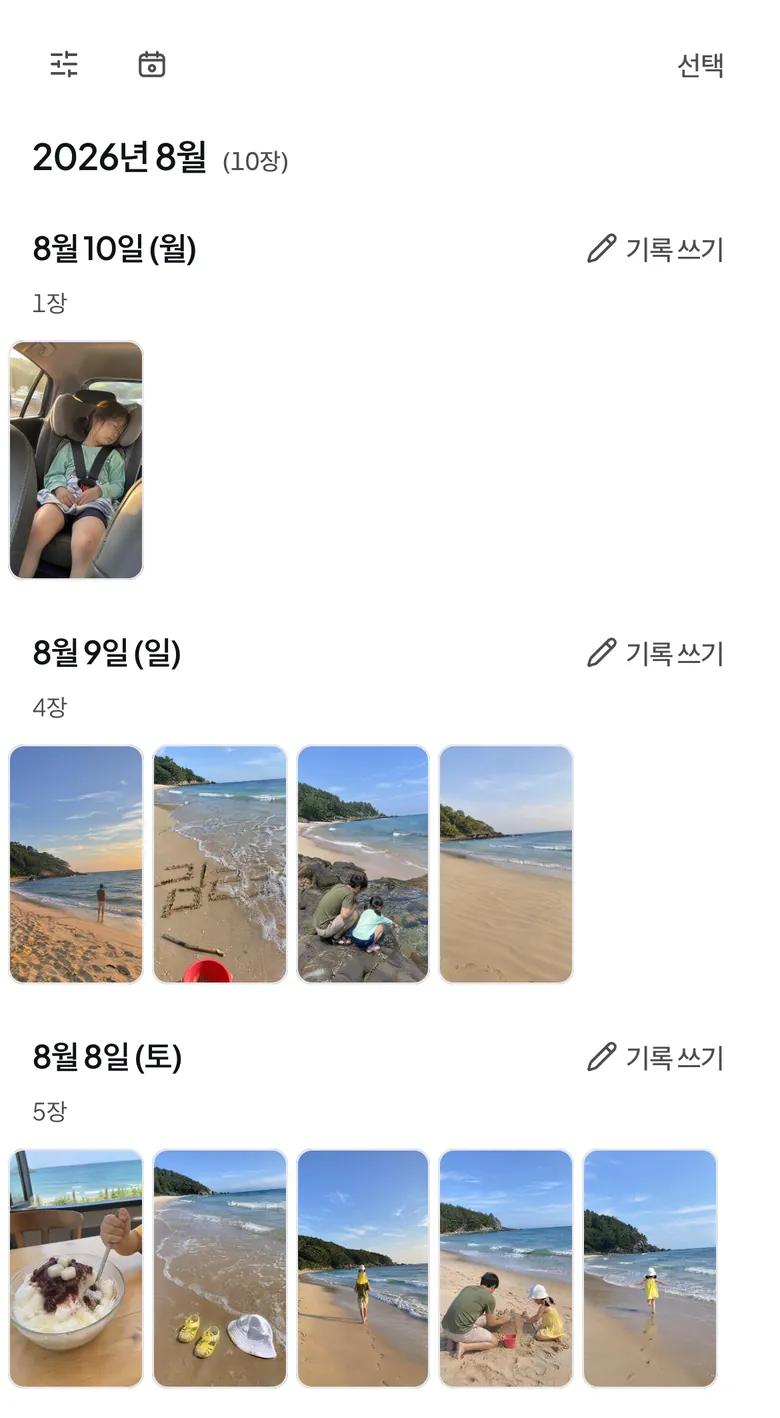
A timeline is a list of photos in time order.
Group by date or place
Section titled “Group by date or place”- Tap the “Group photos” button above your photos.
- Choose “Date” or “Place”.
With “Place”, photos from the same city or area go together. Photos that do not say where they were taken get their own group. Places and the map explains more.
Show only some photos
Section titled “Show only some photos”- Tap the “Filters” button above your photos.
- Choose what you want to see. “Period” picks a range of dates. “Place filter” picks one place. To see only photos with no place, choose “No location”.
- Tap “Apply”.
To clear everything, open “Filters” again and tap “Reset”.
Open one photo up close
Section titled “Open one photo up close”- Tap a photo. It fills the screen.
- Swipe sideways or use the arrows to move to the next or previous photo.
- To see the date, the place and comments, tap “View details and comments”.
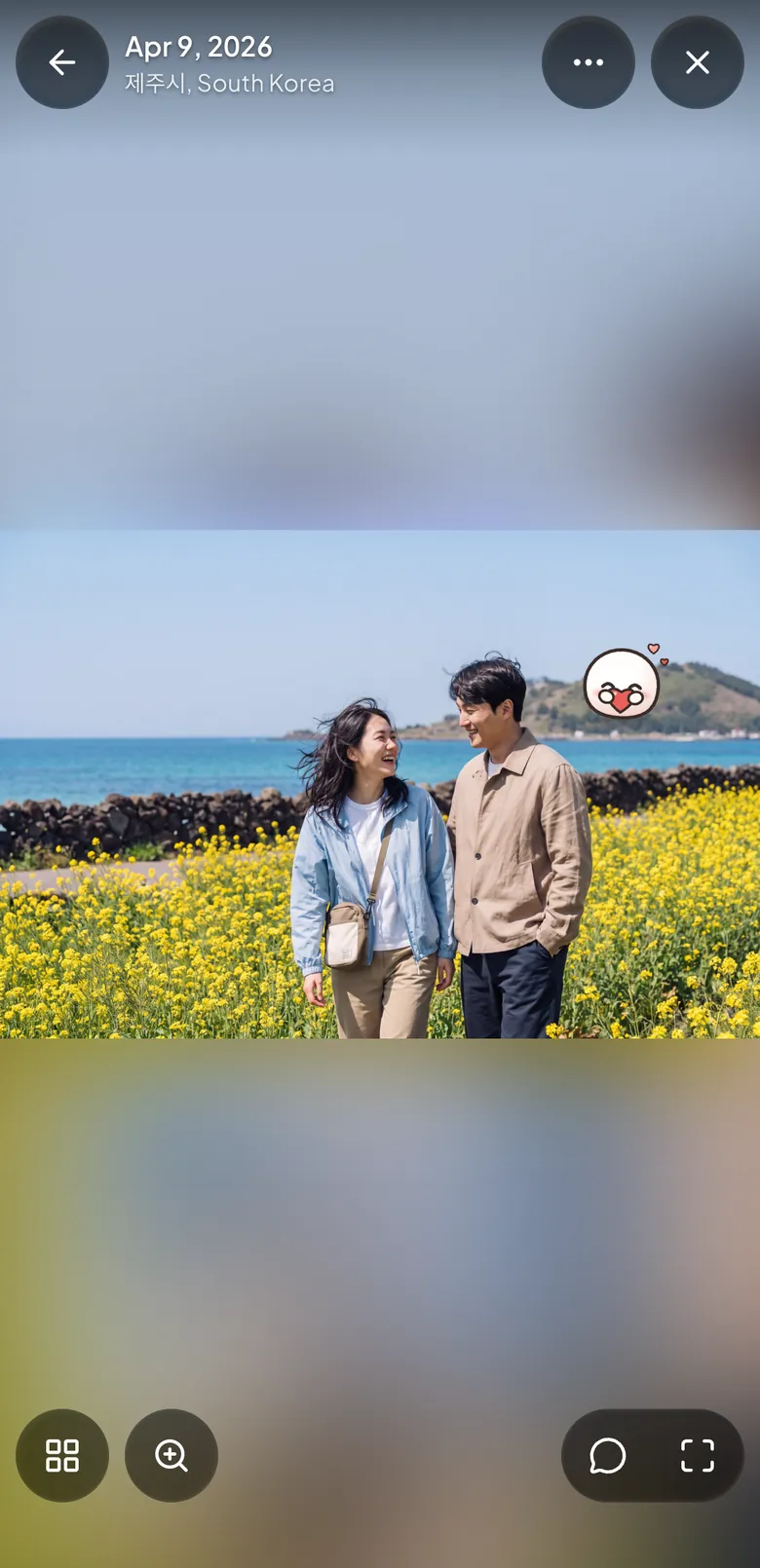
By plan
Section titled “By plan”The quality you see photos in depends on your plan. On Free, a photo shows “Viewing in standard quality”. On every plan, the original you added is kept as it is.
| Free | Plus | Pro | |
|---|---|---|---|
| Quality when you view and download photos | |||
| Quality when you view and download photos | Standard | Original | Original |
| Originals kept on our servers | |||
| Originals kept on our servers | Kept as is | Kept as is | Kept as is |
If it doesn’t work
Section titled “If it doesn’t work”- A new photo says “Preparing this photo”: Firstage is getting it ready to show. Wait a moment.
- You see “No photos match these filters”: Your filters are too narrow. Open “Filters” and remove one.
- A photo is not on the map: It does not say where it was taken. You can set its place in Fix the date, place or caption.
Good to know
You can also gather photos in favorites, folders and albums. See Sort photos into albums and folders.
Read next
Section titled “Read next”The chat could not open. Please email us at contact@firstage.ai