Make a space to share with family
Part ofSpaces and invitationsTogether
A space is where you and your family or friends see photos and stories together. Photos from everyone’s phones come together in one place, so you can look back on the same day through each other’s pictures.
The menu calls it ‘Workspaces’. Inside the app, the screens call it a ‘space’. They are the same thing. The glossary lists both names.
When it helps
Section titled “When it helps”- On a family trip, Mom, Dad and the kids each take photos. A space puts them all in one place.
- Grandparents live far away. A space lets them see the kids grow, day by day.
- You went somewhere with friends and want to write about the day together.
Your own space from the start
Section titled “Your own space from the start”When you sign up, Firstage makes one space just for you. It is called ‘My Space’. In the list of spaces it has a ‘Personal’ label. A space you share with other people has a ‘Shared’ label.
‘My Space’ does not count toward the number of spaces you can create on Free.
Create a space
Section titled “Create a space”- In the menu, tap ‘Workspaces’. The ‘Shared spaces’ screen opens.
- At the top, tap ‘Create’.
- Type a name in ‘Space name’, for example ‘Our family’.
- Under ‘Who can see this’, choose ‘Members only’.
- At the bottom, tap ‘Create’.
If you type email addresses in ‘Invite people’ and tap ‘Add’, those people get an invitation email after the space is made. To invite people by KakaoTalk or a text message instead, see Invite family to a space.
Look around a space
Section titled “Look around a space”When you open a space, you see the ‘Feed’ first. It shows the photos and stories people added, by date.
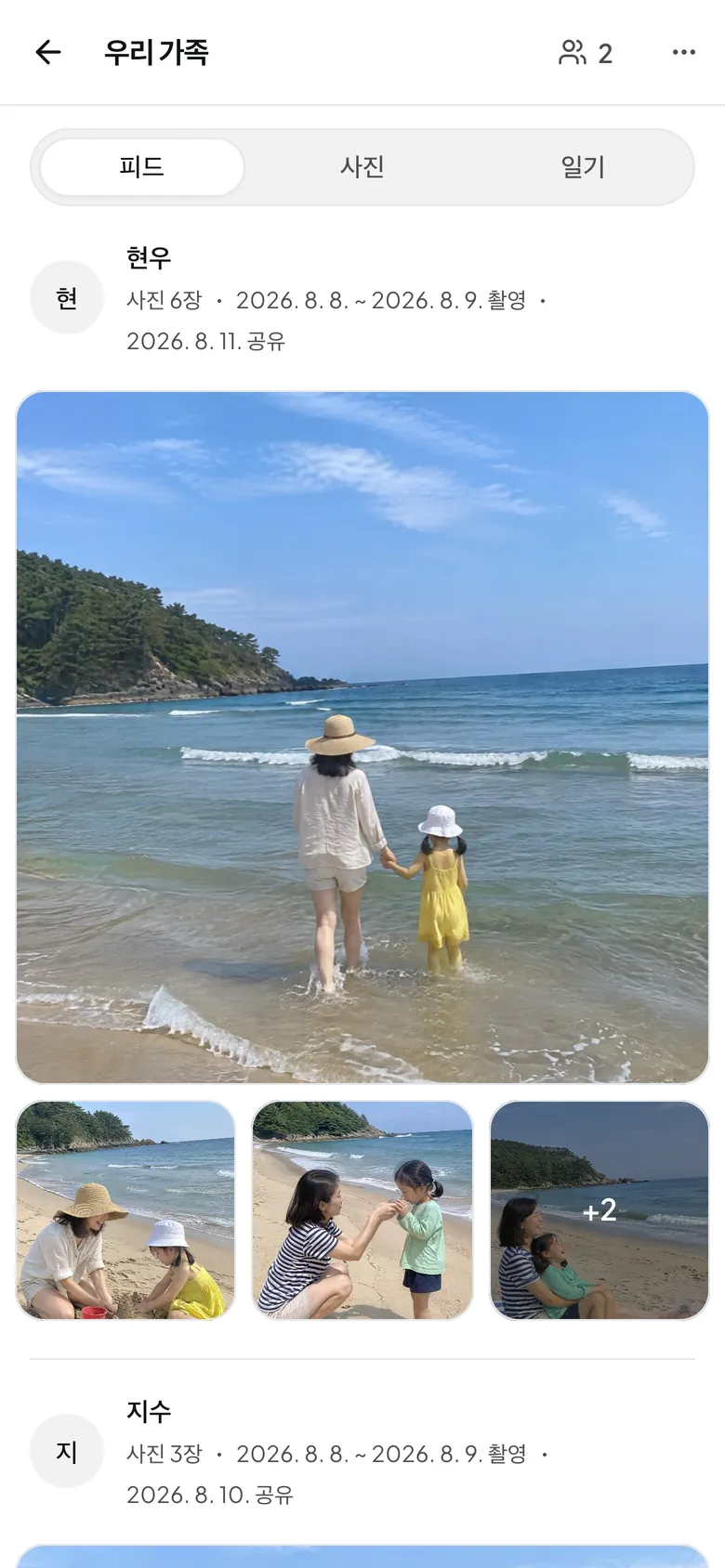
- Under ‘How to view this space’, choose ‘Feed’, ‘Photos’ or ‘Diary’.
- Tap ‘Add photos’ to add photos to this space.
- Tap ‘Write a story’ to write about a day together. See Write in your diary.
Show your photos in a space
Section titled “Show your photos in a space”You can also share photos you added before.
- On the ‘Photos’ screen, tap ‘Select’.
- Choose the photos to share.
- Tap ‘More’, then ‘Share to space’.
- Choose a space, then tap the button with the number of photos, for example ‘Share 3 photos’.
When you add new photos, the ‘Share to’ window also lets you pick a space right away. To keep them to yourself, choose ‘Keep private (upload only)’.
- You can only share photos you added yourself.
- Photos you share in a space use your own storage, not other people’s.
Roles in a space
Section titled “Roles in a space”Each person in a space has one role. Tap the people button at the top of the space (it shows how many people are in it). ‘Manage Members’ opens, and each person’s role is under their name.
| Role | In plain words | What they can do |
|---|---|---|
| Owner | The person who made the space | Invite and remove people, change the name and cover photo, add photos, write |
| Editor | Someone who helps fill the space | Add photos, write, react |
| Viewer | Someone who only looks | Look, react |
People who join from an invitation are ‘Editors’. A space always needs one owner, so the last owner cannot leave.
Leave a space, or remove someone
Section titled “Leave a space, or remove someone”- Tap the people button at the top of the space to open ‘Manage Members’.
- On your own row, tap the ‘Leave space’ button.
- In ‘Leave this space?’, tap ‘Leave’.
Photos you shared stay in the space. The originals stay in your ‘Photos’.
An owner can tap ‘Remove member’ on someone else’s row to remove them. A removed person cannot come back with an old invite link.
A link anyone can view without signing in
Section titled “A link anyone can view without signing in”An owner can make a link that lets people see the space’s photos without signing in. The owner needs Plus or Pro to make it. This link is only for looking. It does not add anyone to the space.
- The owner opens ‘Manage Members’ and taps the pencil button to open ‘Edit space’.
- Change ‘Who can see this’ to ‘Anyone with the link’, then save.
- In ‘Manage Members’, under ‘Share with a link’, tap ‘Copy link’.
What link viewers do not see
Exact locations, archived photos, original files and members’ email addresses stay hidden. Search engines do not list the page.
If you tap ‘Create new link’, the old link stops working.
By plan
Section titled “By plan”Inviting people and using a space together are free on every plan. People you invite can view, add photos and write, whatever their plan. Two things depend on the plan: how many spaces you can create yourself, and the link anyone can view.
| Free | Plus | Pro | |
|---|---|---|---|
| People you invite can view, upload and react | |||
| People you invite can view, upload and react | Included | Included | Included |
| Spaces you join and members in a space | |||
| Spaces you join and members in a space | No limit | No limit | No limit |
| Spaces you create (not counting ‘My Space’) | |||
| Spaces you create (not counting ‘My Space’) | 3 spaces | No limit | No limit |
| Free | Plus | Pro | |
|---|---|---|---|
| Share by link (no sign-in needed to view) | |||
| Share by link (no sign-in needed to view) | Not included | Included | Included |
On Free, when you reach the limit, you see a message with ‘View plans’. Spaces you already have keep working, and you can always join other people’s spaces.
If the owner’s plan changes and no longer includes link sharing, the link pauses. When the owner is back on a plan with link sharing, the same link opens again.
If it doesn’t work
Section titled “If it doesn’t work”- ‘Create’ shows a limit message. You have made as many spaces as Free allows. You can tidy up spaces you no longer use, or join someone else’s space.
- ‘Share to space’ is missing. You can’t share photos someone else added. Check that you added the photo.
- ‘Leave space’ is missing. You are the last owner, so you can’t leave.
- You see that you are no longer in this space. The owner removed you. Ask for a new invitation to come back.
If the owner deletes their account and the space has no owner left, adding photos and writing stop right away. Members can still view the space for 30 days after that. Photos you added stay in your personal space.
Read next
Section titled “Read next”The chat could not open. Please email us at contact@firstage.ai