Make a journey and look back
Part ofJourneysLook back
A journey is the photos from the days you choose, told as one story. Photos from different days and places join up as a path on a map and a story day by day.
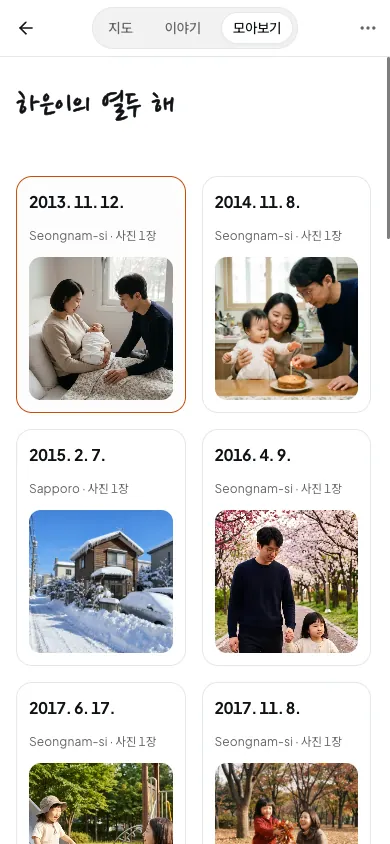
It does not have to be a trip. You could pick only your child’s birthdays and keep twelve years in one journey.
When it helps
Section titled “When it helps”- You want to see a four-day trip again, in order of days and places.
- You want the photos from every birthday in one place, to see your child grow.
- You want to keep the days in your old neighborhood as one story before you move.
Before you start
Section titled “Before you start”- You added photos on the days you want. If you have none, you see “Add some photos first”. Start with Add your photos.
Make a journey
Section titled “Make a journey”- Tap “Journeys” at the bottom of the screen. On a computer, open “Library” in the menu and click “Journeys”.
- Tap “Create” at the top of the Journeys screen.
- In “Choose days for your journey”, pick the days you want, one by one.
- Tap the button that shows how many days you picked, such as “Preview 2 days”.
- Check the photos and writing in the preview.
- Tap the button such as “Create a journey from 2 days”.
- Every photo you added on the days you picked goes in. Photos with no place go in too.
- One journey can hold up to 366 days.
- Firstage never makes a journey on its own. You always choose the days.
Three ways to look
Section titled “Three ways to look”When you open a journey, choose how to see it at the top.
| View | What you see |
|---|---|
| Map | Walk through the day again, following where each photo was taken. |
| Story | Read each day’s photos and diary entry one after another. |
| Overview | Put photos from different days side by side to see what changed. |
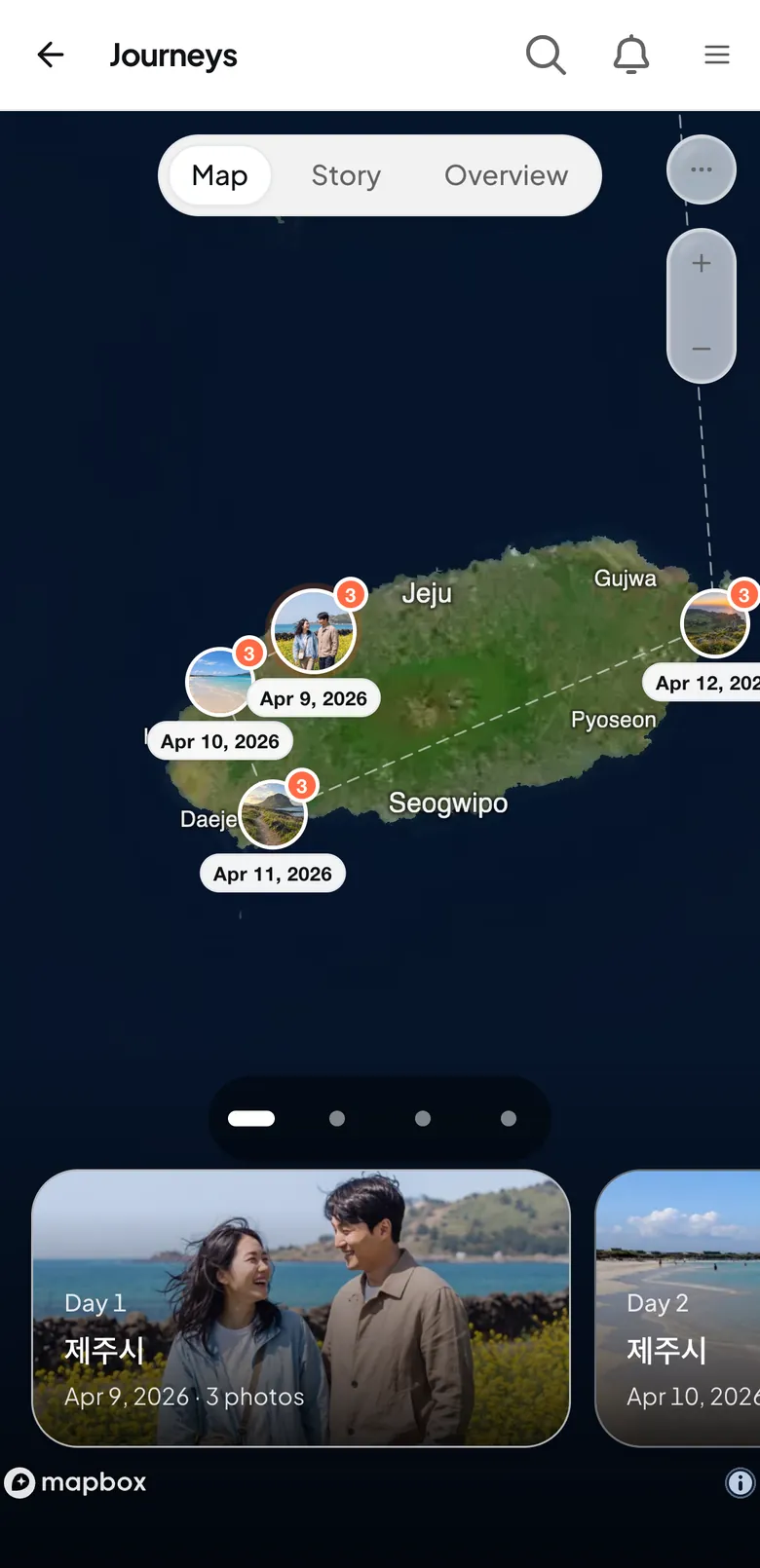
- Tap “Map” at the top.
- Swipe the day cards at the bottom to move to another day.
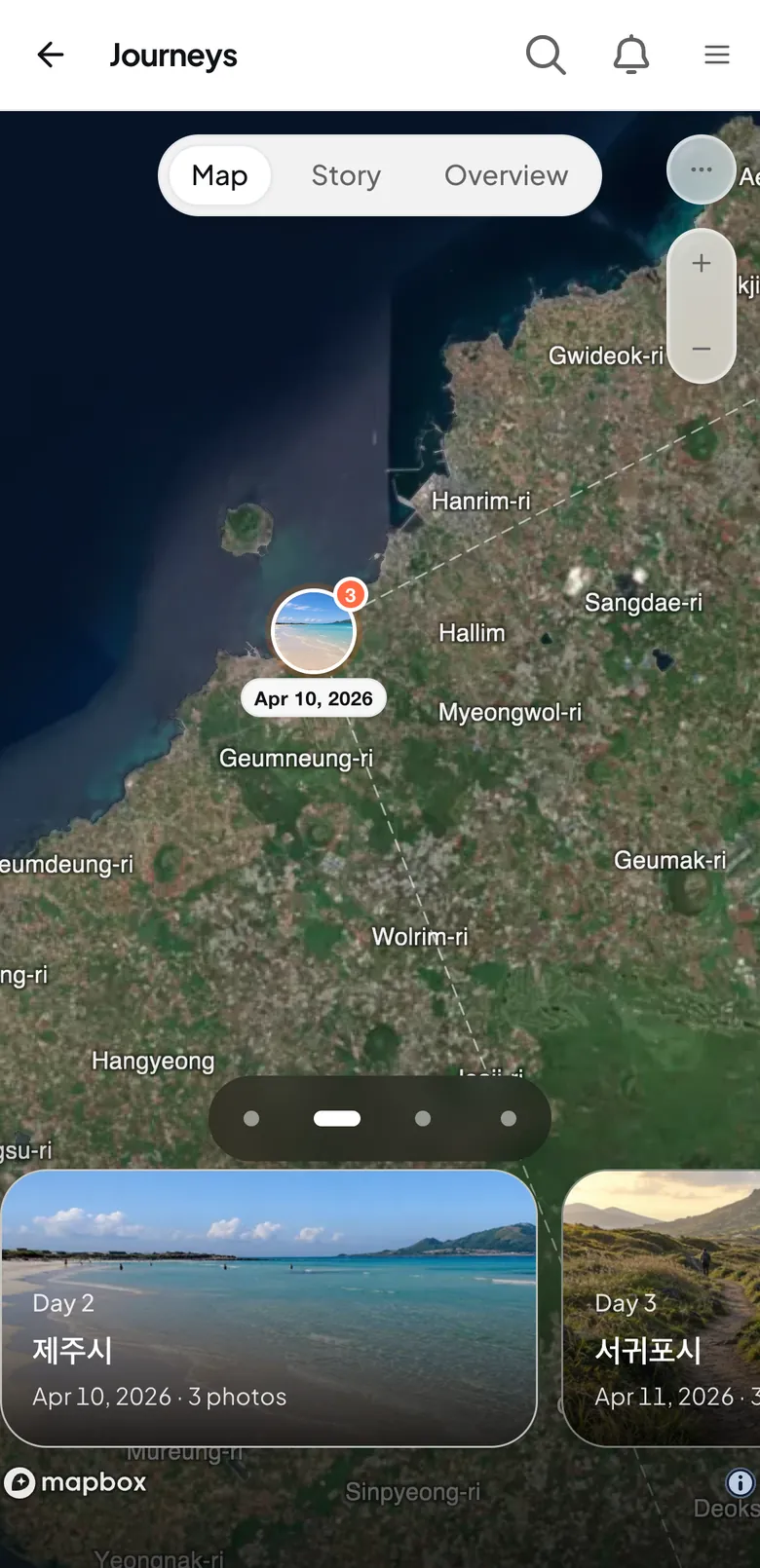
If none of the photos say where they were taken, the map is empty. You can still see your photos in “Story” and “Overview”.
- Tap “Story” at the top.
- On a phone, tap the right side of a photo for the next one, or the left side for the one before. Swipe sideways to move to another day.
At the very end of a journey is the “Journey story”. Tap “Write a story” to write about the whole journey. Each journey has one story.
Overview
Section titled “Overview”- Tap “Overview” at the top.
Keep it to yourself or make it public
Section titled “Keep it to yourself or make it public”At first, only you can see a journey. Change its sharing only when you want it public.
- Tap the “Show journey details” button at the top of the journey.
- Tap “Public sharing”.
- Check the photos and writing that will be shown.
- Tap “Request review”.
- It stays private until a Firstage administrator approves it.
- Once approved, anyone can see those photos and that writing, the dates, and city or area names. Original files and exact locations are never shown.
- To keep it to yourself again, tap “Make private” in the same place.
| Free | Plus | Pro | |
|---|---|---|---|
| Share by link (no sign-in needed to view) | |||
| Share by link (no sign-in needed to view) | Not included | Included | Included |
| Public photobooks | |||
| Public photobooks | Not included | 3 books | No limit |
| Public Journeys | |||
| Public Journeys | Not included | 3 Journeys | No limit |
| Public short posts (photos and diary) | |||
| Public short posts (photos and diary) | Not included | 3 posts | No limit |
| Publish to Instagram, Threads and Pinterest | |||
| Publish to Instagram, Threads and Pinterest | Not included | Not included | Included |
Note
Making a journey public is different from “Publish”, which posts to social media such as Instagram. Sharing compares the two.
Make more from a journey
Section titled “Make more from a journey”In “Journey details”, tap “Make a photobook” or “Make a recap” to start with this journey’s photos. See Make a photobook and Recaps.
If it doesn’t work
Section titled “If it doesn’t work”- You see “Add some photos first”: You can only pick days that have photos. Tap “Upload photos” and add some first.
- You cannot find the day you want: Tap “Show more” at the bottom of the list to load older days.
- You see “Public sharing isn’t available on your current plan”: Making records public works on Plus and Pro. See Plans.
Read next
Section titled “Read next”The chat could not open. Please email us at contact@firstage.ai