Find photos by place and on the map
Part ofPlaces and mapKeep
Photos that know where they were taken are grouped by city or area and put on the map. Even if you forget the date, you can find “the photos from that place”.
Places and the map are not a separate menu. They are part of the Photos screen.
When it helps
Section titled “When it helps”- You want to find photos from a trip years ago by the place, not the date.
- You want to see all the photos from the park you often visit with your child.
- You want to see every place you went this year on one map.
How a photo gets on the map
Section titled “How a photo gets on the map”A photo needs two things to go on the map.
- The photo must know where it was taken. Your phone camera must save the location when you take the photo. See Make your camera save the location.
- You must have agreed to Firstage’s location terms. Photos added before you agree do not keep a location. See Location access.
When both are true, Firstage reads where the photo was taken as you add it and gives it a city or area name.
See photos by place
Section titled “See photos by place”- Open the Photos screen.
- Tap the “Group photos” button above your photos.
- Choose “Place”.
To see photos from one place only, open “Filters”, choose the place under “Place filter” and tap “Apply”.
Find photos on the map
Section titled “Find photos on the map”On a phone, the map is at the top of the Photos screen. On a computer, it is next to your photos.
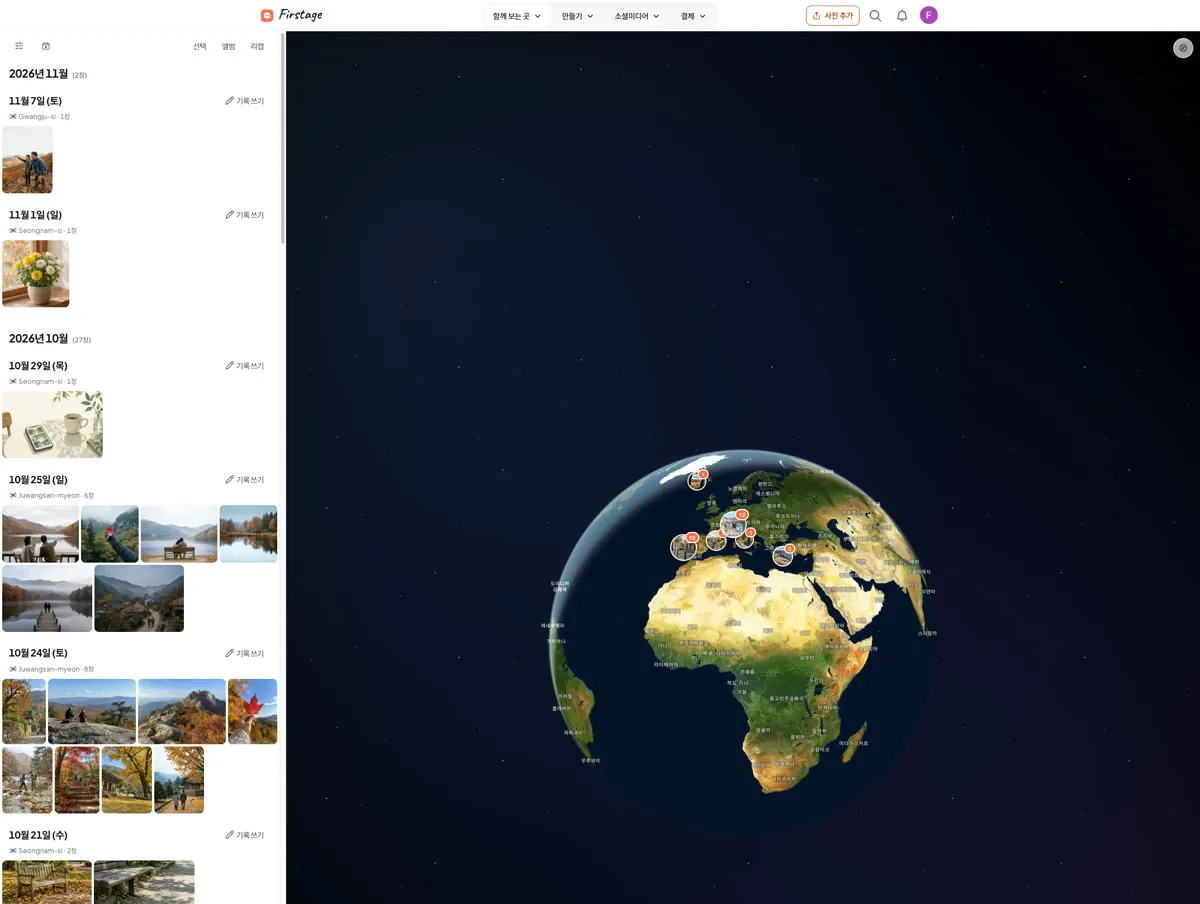
- Drag or zoom the map to the place you want.
- Tap a spot where several photos are gathered. “Photos here” opens.
- Tap the photo you want.
- Where there is only one photo, tap once for a preview and once more to open it.
- In “Photos here”, tap “Zoom into this area” to move the map closer.
- Tap “Switch to flat map” or “Switch to globe” to change the map’s shape.
- Tap “Go to my location” to move the map to where you are now. For this, your phone or browser must be allowed to share where you are now.
Moving the map does not change your list of photos. To show only one place in the list, use “Place filter”.
Note
The place saved in a photo when you took it, and where you are now (used to move the map), are two different permissions. Your photos go on the map even if you do not share where you are now.
Give a place to photos that have none
Section titled “Give a place to photos that have none”If photos you added in the last three days do not say where they were taken, a message such as “3 recent photos have no capture location” shows above the map.
- Tap “View photos” in the message. Only photos with no place are shown.
- Open a photo you want to give a place.
- Tap “Add location” in the photo’s information line.
- Type the place in “Search for a place”.
- Choose the right place from the results.
Without the message, you can still see every photo with no place: open “Filters” and choose “No location” under “Place filter”.
If it doesn’t work
Section titled “If it doesn’t work”- A photo has the wrong place: Right now you cannot move a photo that already has a place. If the photo shows “Unlink place”, you can take that place off the photo.
- You see “Location use is paused”: You paused location use, so your photos do not appear in places or on the map. Turn it back on in “Photo location use” in the message, and they come back.
- You see “You withdrew location consent”: Your photos stay, but they do not appear in places or on the map. If you agree again, photos you add after that go on the map.
- “Go to my location” does nothing: Check that your phone settings or browser settings let Firstage use your location.
- A photo from a chat app is not on the map: Photos from chat apps, screenshots and photos from the internet often do not say where they were taken. Give them a place with the steps above.
Read next
Section titled “Read next”The chat could not open. Please email us at contact@firstage.ai